How the free generator works
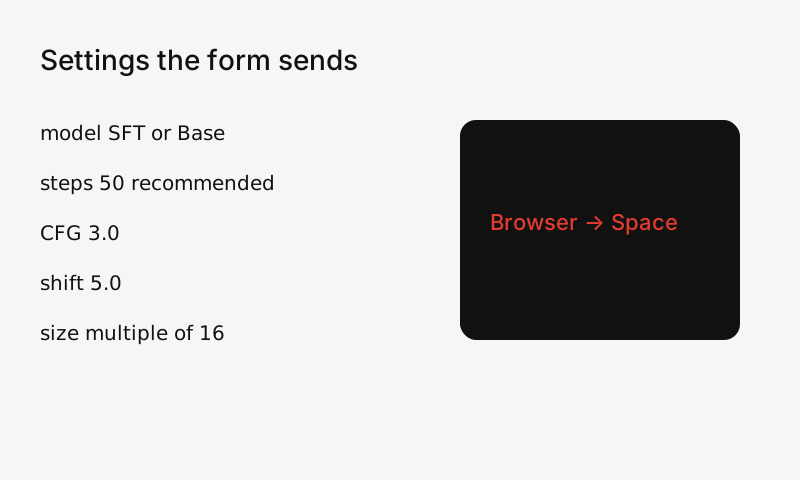
- Your browser connects to the public Space OpenMOSS-Team/MOSS-Image using Gradio's JavaScript client. This site's server is not involved.
- Hugging Face queues the request and runs it on ZeroGPU, shared GPUs lent to the Space for a few seconds at a time.
- GPU time counts against your daily ZeroGPU quota: about 2 minutes if you are not signed in, 5 minutes for a free Hugging Face account, and 40 minutes for PRO. A 50-step image at 1024×1024 uses a meaningful share of the anonymous allowance.
- When the quota runs out the form says so. Signing in on the official Space page gives a larger allowance. The quota resets 24 hours after the first use.
Settings explained
| Setting | Official recommendation | What changing it does |
|---|---|---|
| Model | Base or SFT | SFT is fine-tuned and tends to organise text more cleanly. Base is the starting point OpenMOSS describes for LoRA training. |
| Resolution | 1M, 1.5M or 2M pixels | Width and height must be multiples of 16. Dense text needs more pixels than a 512×512 draft. |
| Steps | 50 for best results | Fewer steps are faster and use less quota, and they soften fine text. |
| CFG | 3.0 (range 3–6) | Hidden under Advanced. 3 is usually enough for long prompts. |
| Shift | 5.0 | A scheduler value. The form keeps it at 5. |
| Layer skipping | Negative-branch skip at layer 22 | The form keeps the official default. |
| Negative prompt | nsfw, worst quality, bad anatomy, watermark, jpeg artifact | The tags recommended in the user guide. |
| Seed | — | Fix a seed to compare prompt edits. The same seed on different hardware may still differ slightly. |
Prompt tips
- Quote every piece of visible text exactly, and put real line breaks where lines should break.
- English descriptions work best. The text to render can be Chinese, English, or mixed.
- Describe hierarchy: which line is the large title, which is small print, and where each block sits.
- Need exact positions? Use the layout JSON builder. This form accepts its output and the matching size.
- Ready-made examples are in the prompt library.
When the form does not work
- Quota used up — the official Space link under the form lets you sign in to Hugging Face for a larger allowance.
- Network error — some networks block huggingface.co or *.hf.space.
- Space restarting — wait a few minutes after an OpenMOSS update.
Sources
- MOSS-Image user guide (USERGUIDE.md)
- OpenMOSS/MOSS-Image on GitHub (README)
- Official demo Space – OpenMOSS-Team/MOSS-Image
- Hugging Face docs – ZeroGPU
- Hugging Face – OpenMOSS-Team/MOSS-Image-SFT
Facts checked 2026-10-18.